 Dibyajyoti Kabi
Every chat you have with a hosted AI lives on someone else’s server. For most things that’s fine. For client work, private notes or business data, a lot of people would rather keep it on a machine they control.
The good news is that you can now run your own ChatGPT-style AI on a small rented server. No GPU, no expensive hardware and no machine learning background.
In this post, I will show you how to set up Ollama and Open WebUI on a VPS, put it behind HTTPS, and avoid the mistake that left about 175,000 AI servers open to the whole internet.
What you’re building
There are two pieces.
- Ollama. This downloads open models and runs them. It has an API on port 11434.
- Open WebUI. This is the chat interface you open in your browser. It looks and feels a lot like ChatGPT, with chat history, user accounts and file uploads.
On top of that, you put a small web server (I use Caddy) in front so you get a proper domain with HTTPS.
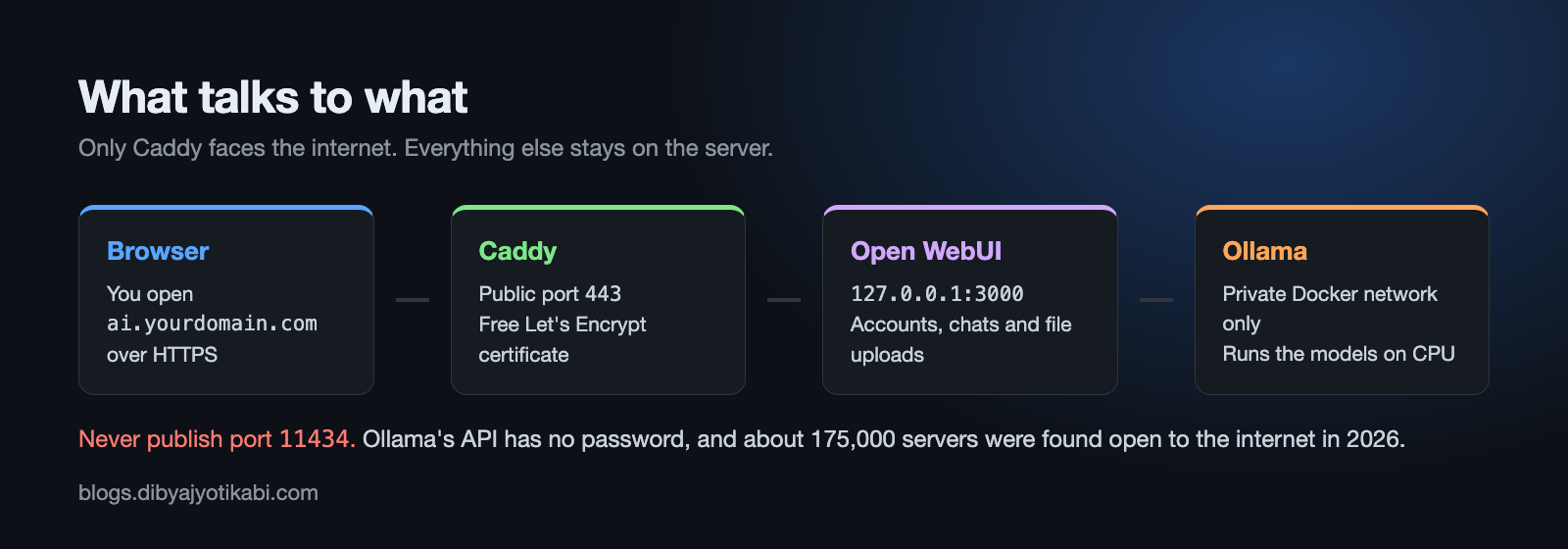
The important part of that picture is what’s missing. Ollama is never reachable from the internet. Only Caddy is.
Be honest about speed first
A VPS without a GPU runs models on the CPU. That works, but it’s slower than ChatGPT.
Here’s what to expect on a regular shared VPS.
- Small models (around 3B to 4B parameters) feel usable for writing help, summaries and quick questions.
- 7B to 8B models give better answers but feel slow, and they need more RAM.
- Anything much bigger needs a GPU server, which costs a lot more.
So don’t expect frontier-model quality. Think of it as a private assistant for everyday tasks, not a replacement for the best paid models.
What you need
- A VPS with at least 8 GB of RAM, 4 vCPUs and 40 GB or more of disk. I use Hetzner, but any provider with Ubuntu works. Check the current price before you order, since Hetzner changed its cloud pricing twice in 2026 (Hetzner pricing).
- Ubuntu 24.04 on the server.
- A domain or subdomain you can point at the server, for example ai.yourdomain.com.
- About 30 minutes.
Point an A record for your subdomain at the server’s IP address before you start, so HTTPS works on the first try.
Step 1: Lock down the server
SSH into the server and set up the firewall first. Only SSH and web traffic should get in.
sudo ufw allow OpenSSH
sudo ufw allow 80
sudo ufw allow 443
sudo ufw enable
There’s a catch with Docker here. Docker can open ports around ufw, so a firewall alone won’t save you if you publish a port the wrong way. That’s why the next steps bind everything to localhost.
Step 2: Install Docker
Docker’s official install script is the quickest way on a fresh Ubuntu server.
curl -fsSL https://get.docker.com | sh
Check it worked with docker compose version.
Step 3: Create the Compose file
Make a folder and a secret key for Open WebUI. The key keeps people logged in when the container restarts.
mkdir ~/ai && cd ~/ai
echo "WEBUI_SECRET_KEY=$(openssl rand -hex 32)" > .env
Now create docker-compose.yml in that folder with this content.
services:
  ollama:
    image: ollama/ollama
    volumes:
      - ollama:/root/.ollama
    restart: unless-stopped

  open-webui:
    image: ghcr.io/open-webui/open-webui:main
    ports:
      - "127.0.0.1:3000:8080"
    environment:
      - OLLAMA_BASE_URL=http://ollama:11434
      - WEBUI_SECRET_KEY=${WEBUI_SECRET_KEY}
    volumes:
      - open-webui:/app/backend/data
    depends_on:
      - ollama
    restart: unless-stopped

volumes:
  ollama:
  open-webui:
Look at two things in that file.
- The ollama service has no
portssection at all. Open WebUI talks to it over Docker’s private network, so port 11434 never touches the internet. - Open WebUI is published on
127.0.0.1:3000, not3000. That means only the server itself can reach it, and Caddy will be the only way in.
Start it with docker compose up -d.
Step 4: Download a model
Pull a small model into Ollama.
docker compose exec ollama ollama pull llama3.2:3b
If your server has 16 GB of RAM, try a 7B or 8B model too, like qwen2.5:7b. You can browse every model on the Ollama library. Start small and move up only if the answers aren’t good enough.
Step 5: Add HTTPS with Caddy
Install Caddy from the Ubuntu repository.
sudo apt install -y caddy
Open /etc/caddy/Caddyfile, delete what’s in it and add this, with your own subdomain.
ai.yourdomain.com {
    reverse_proxy 127.0.0.1:3000
}
Reload it with sudo systemctl reload caddy. Caddy gets a free certificate from Let’s Encrypt on its own.
Step 6: Create your admin account right away
Open https://ai.yourdomain.com in your browser and sign up.
Do this immediately. The first account created on Open WebUI becomes the administrator (Open WebUI docs). After that, new sign-ups are turned off by default. If you want to add family or team members later, go to Settings > Admin > Authentication and turn on New Sign Ups, then approve each person.
That’s it. Pick your model at the top of the chat and start typing.
The mistake that exposed 175,000 servers
In January 2026, researchers from SentinelOne and Censys reported about 175,000 Ollama servers reachable from the public internet across 130 countries (SentinelLABS report, The Hacker News). Close to half of them had tool calling turned on.
This wasn’t a bug in Ollama. Ollama listens only on localhost by default. People changed OLLAMA_HOST to 0.0.0.0 or published port 11434 in Docker so they could reach it from another device, and Ollama’s API has no password.
Anyone who finds an open one can run models on your server, burn your CPU, and pull or delete models.
Here’s how to check yours. From your own computer (not the server), run this with your server’s IP.
curl http://YOUR_SERVER_IP:11434/api/tags
If it times out or the connection is refused, you’re fine. If it returns a list of models, your Ollama is open to the world. Remove the port from Docker and restart.
If you want to use the Ollama API from your laptop, connect over a private network like Tailscale instead of opening the port.
Keeping it running
A few habits keep this setup healthy.
- Update every few weeks with
docker compose pull && docker compose up -d. - Back up the
open-webuivolume. That’s where your chats and accounts live. - Watch RAM with
docker stats. If the server starts swapping, use a smaller model. - Keep Ubuntu patched with
sudo apt update && sudo apt upgrade.
If you’d rather click than type, Coolify has one-click templates for both Ollama and Open WebUI (Coolify services). Just make sure it doesn’t publish port 11434.
Wrapping up
A small VPS, two containers and a reverse proxy give you a private AI chat that you own. It won’t beat the top paid models, but for drafts, summaries and private notes it does the job, and your data stays on your server.
Have you tried running AI on your own server yet? Tell me which VPS plan and model you’re using, and I’ll help you pick a model that fits your RAM.